Working with pages in Strife
Here you'll find the basics of working with pages in Strife.
Browse a page
To browse a page in the exact same way as a user would see it, hit the Play button next to the publish button in the top right corner of your screen. Note that any content changes has to be published in order to display.
Create a new page
When in editing & preview mode, browse this page via the Play button in the top right corner of your screen to play the video.
Pages are created from the content list under the “content tab” in the left panel. There are two ways to create a new page from scratch:
From the “compose” button at the top right corner.

From a page where you want to create a subpage. This option pre-populates the origin (parent page) of the page you are about to create.

A page requires three things:
Every page needs a parent (origin). Choosing a parent appoints a logical place for the page you are to create. It defines the underlying hierarchy in Strife.
Note! The page hierarchy does not have to reflect the actual website hierarchy. It's quite common that you wish to create a navigation structure separated from the hierarchy of content.The next thing you need to do is to choose a template. The template appoints the layout of the page and regulates what content that are editable on the page.
The last thing you need to do is to give the page a title. The title is a name that helps you find the page when searching the content list. A well-formulated title will simplify finding the page/document in Strife.
Create & manage page content with the rich text editor
When in editing & preview mode, browse this page via the Play button in the top right corner of your screen to play the video.
When working with content using the Rich Text Editor, you get all the formatting tools you need right at your fingertips. The Rich Text Editor allows you to add or edit content, media, links, tables and other components on the page in a smooth way.
What content editing options that are available in the rich text editor are decided in each customer project based on the editorial needs. The styling and typography connected to the formatting options in the rich text editor always correspond with customer graphical guidelines and design theme of your website.
In a rich text content area, there are two ways to activate the rich text editor:
Highlight the text you want to format
Type / and the editor will appear
Managing page SEO
When in editing & preview mode, browse this page via the Play button in the top right corner of your screen to play the video.
Each page in Strife can be SEO optimized. You will find the SEO tab under the “Metadata” tab located under the three dots in the top right corner of a page.

At the top in the SEO tab you will find hints of what’s important to consider from an SEO perspective.
Strife uses AI to auto-suggest page title and page description based on the content of the specific web page. You may choose to accept what AI suggest or reject the suggestion, instead writing your own title and description. If you choose to accept what AI suggests you can also modify the AI-created title and description text. Strife also gives you a visual feedback to indicate if title and description length are too long, short or within limit.
In the page SEO tab you are also able to define what keywords you want to make sure that you optimize the page content for.
At the bottom in the SEO section you will see a SERP visualizing how your page will be presented in the search result in Google.
Find website pages
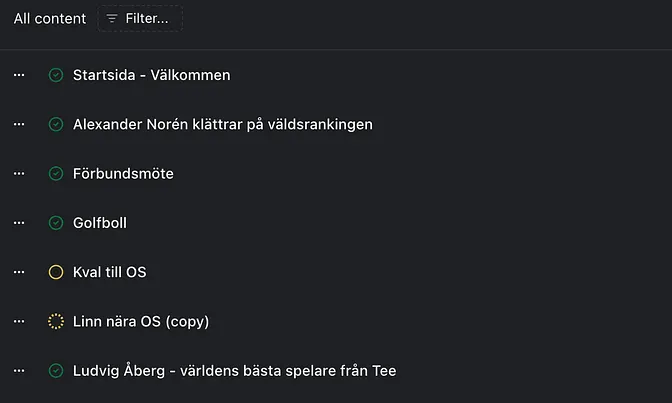
The website pages are found under “Content” out in the left panel”. From the content list you can filter your website content in multiple way, making it quick and easy to find and manage the content you’re looking for. Here you’ll find more information on filtering and findability.